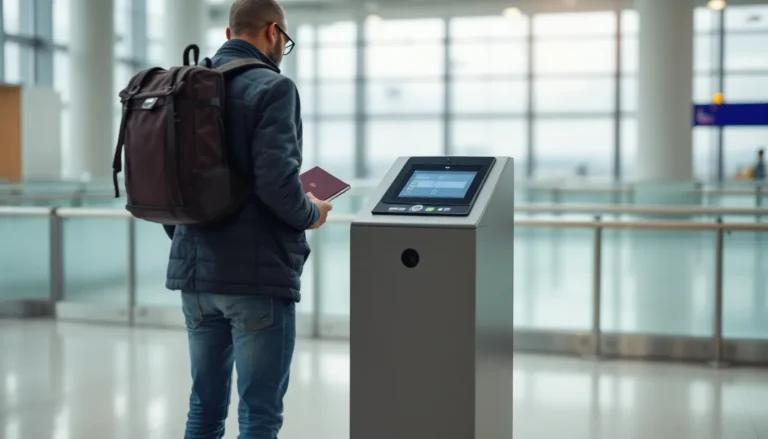

A mobile boarding pass in Apple Wallet is not a complete departure plan: it must be issued and signed correctly, and airline and airport policies determine whether it will be accepted. A PDF or printed copy still earns space in your travel documents, especially when the phone has no signal or battery.
The best travel apps to install before flying are not the ones that promise to manage every part of a trip. They are a small, dependable set: an airline app, offline maps, a booking organiser, a secure payment option and tools for protecting accounts on public Wi-Fi. This guide is for digital nomads and longer-stay travellers who need to navigate after landing, keep work and bookings organised, manage international payments and find coworking options without filling a phone with overlapping apps.
Quick answer: Install your airline app, Google Maps with an offline area, one offline backup such as OsmAnd or MAPS.ME, TripIt, Apple Wallet or Google Wallet, a payment app such as Wise or Revolut, a password manager and a tested VPN. Keep a PDF or printed boarding-pass backup, download maps before leaving and test critical apps without mobile data, because offline limits, fees and airline acceptance vary.
The essentials: Build a small pre-flight app toolkit
Build a small pre-flight app toolkit

The useful question is not how many travel apps you can install, but which failure each one prevents. Keep the core set focused on five jobs: getting through the airport, navigating without data, finding your bookings, paying securely and protecting your accounts. Everything else can wait until the destination and length of stay are known.
| Must have before departure | Optional for longer stays |
|---|---|
| Airline app; Google Maps; one offline map backup such as OsmAnd or MAPS.ME; TripIt; Apple Wallet or Google Wallet; one payment app such as Wise or Revolut; a password manager; a tested VPN. | Coworker or a local coworking directory; WhatsApp or Telegram; Uber or Bolt; Airbnb or Booking.com; a second payment card or account; a notes app containing key addresses and instructions. |
Start with the airline’s own app. It is the place to check the current flight record, retrieve a boarding pass and see what the carrier accepts at check-in and boarding. A pass in Apple Wallet or Google Wallet is convenient, but it is not a complete backup: Apple explains that Wallet passes must be issued and signed correctly to be recognised, while airline and airport policies differ. Save the pass as a PDF where possible and keep a printed copy for a flight on which losing phone access would be costly. IATA’s continuing work on digital identity and contactless travel also means these processes may change.
For navigation, use Google Maps as the familiar primary tool when you have data, then download the area around your arrival airport, accommodation and first coworking location. Google notes that some countries and regions cannot be downloaded because of contractual limitations. OsmAnd requires map downloads for full offline use, while MAPS.ME offers offline maps for most of the world; choose one backup rather than filling the phone with three overlapping map databases.
TripIt is useful when a longer stay produces several flight, accommodation and transport confirmations: forwarding those emails can turn them into one itinerary. Its Pro version adds real-time risk and disruption alerts, but the free-versus-paid features should be checked before subscribing on the TripIt support page.
Choose Wise or Revolut only after checking the current fee page for your country, plan, currencies and transactions. Wise says conversion and card charges vary; Revolut’s fees are plan-based, and travel-mode features can depend on location permissions and plan level. Install the app, sign in, test authentication and notify your bank before leaving. Finally, install the password manager and VPN at home, not at an airport café. The Electronic Frontier Foundation recommends advance digital-security planning; recovery codes and device access should be tested before public Wi-Fi becomes your only connection.
Tips in detail: 11 decisions that make the toolkit dependable
- Install the airline app first. Use it to check in, retrieve flight details and confirm whether your airline and airport support mobile boarding passes. This is more dependable than assuming a third-party itinerary app will show every operational update. Airline and airport policies vary, so check the carrier’s current guidance before relying on a phone at the gate.
- Save the boarding pass in Apple Wallet or Google Wallet, then create backups. Wallet makes a supported pass quick to reach, but an airline pass must be issued and signed correctly to be recognised, and acceptance differs between airlines and airports, according to Apple’s Wallet guidance. Save the airline’s PDF, take a screenshot where the barcode remains clear, and keep a printed copy with your travel documents. A mobile boarding pass is a convenience, not your only plan; IATA’s work on digital travel standards also shows that these processes continue to evolve.
- Make Google Maps your primary navigation app when you have data. Before departure, download the area covering your airport, accommodation, regular work neighbourhood and likely arrival route using Google Maps’ offline-map instructions. It is a practical main option because it combines familiar place searches with transit, walking and driving information. Offline navigation has limits, however: Google says some countries and regions cannot be downloaded because of contractual restrictions, so check your destination in advance rather than discovering the gap after landing.
- Add OsmAnd as an offline-first backup. Download the relevant country, region or city maps while connected to reliable Wi-Fi and open them once before leaving. OsmAnd requires downloaded maps for full offline functionality, and its paid options may affect download limits, as explained in its official first-steps guide. It suits a digital nomad travelling through areas with uncertain mobile data, but it takes more preparation than simply opening an online map.
- Keep MAPS.ME only if you value a second offline source. Its official app description presents offline maps for most of the world, making it useful as a redundancy layer when one map package is incomplete or difficult to access. Download and test your destination rather than assuming coverage or features will remain unchanged; app packaging, paid tiers and map availability can change between operating systems and releases. For a short city break, Google Maps plus one offline backup is usually enough.
- Put every booking into TripIt. Forward flight, accommodation and other travel confirmations to TripIt so they can be consolidated into one itinerary instead of being scattered through email. The standard service handles the core itinerary function; TripIt Pro adds real-time risk and disruption alerts and other features, according to TripIt’s comparison. This is particularly useful on a longer stay with several accommodation changes, but retain the original airline and booking confirmations because an itinerary organiser is not a replacement for the provider’s own account.
- Compare Wise and Revolut by your actual destination and usage. Neither is a universal winner. Before choosing, check Wise’s current conversion and card charges on its pricing page, then compare them with Revolut’s country-specific plan fees, exchange conditions and ATM terms on its current fee page. For Revolut, also check whether travel-mode functions depend on your plan and location permissions; its travel-mode guidance says these settings should be enabled and tested in advance.
- Carry two payment routes, not just two apps. Keep a primary travel card and a separate backup card, ideally stored separately, and retain a small alternative payment option for the first part of the journey. Before departure, check your banks’ card controls, overseas-use settings and contact details rather than assuming a transaction will be approved. This reduces the impact of a lost phone, a declined card or an app login problem without relying on one provider’s exchange rate, ATM allowance or plan rules.
- Build a secure login stack before you leave home. Use a password manager for unique credentials, store recovery codes separately from the phone they protect, and enable a device lock or biometric protection. The Electronic Frontier Foundation recommends password managers and advance digital-security planning; its guidance supports preparing and testing these tools before using public Wi-Fi abroad. Make sure you can reach the password manager and recovery information if your primary SIM, phone or usual authentication route is unavailable.
- Install and test a VPN before relying on airport or café Wi-Fi. A VPN can add a security layer to a public connection, but it is not a guarantee of privacy, speed or internet access. Sign in at home, confirm that essential services still work and understand how to turn it on before you travel. If the VPN requires a subscription or location permission, review its current terms and test it on the devices you will actually carry.
- Add Coworker or a current local coworking directory for the working part of the trip. Use it to research and, where available, pre-book a desk, then check the listing’s recent status, opening hours, Wi-Fi, power access and rules for calls. This matters more to a digital nomad than a generic attraction app: a low-cost room can be unsuitable if there is no reliable workspace or quiet place for meetings. Listings and availability are city-specific, so treat a directory as a starting point and confirm details with the venue before committing.
Finish with an airplane-mode rehearsal. Turn off mobile data and Wi-Fi, then open the saved documents, locate the downloaded map, display the boarding pass and retrieve the information needed to sign in or recover an account. If that test fails, fix it while you still have a stable connection.
Keep destination-dependent apps optional rather than installing them by default. WhatsApp or Telegram may be useful for accommodation and work contacts; Uber or Bolt may suit a city with strong coverage; Airbnb and Booking.com can help manage a longer stay. Their usefulness depends on the destination, local transport and the way you have booked, so add them after the core toolkit works offline.
Common mistakes to avoid before you fly
Shortcuts that fail at the airport

Installing everything in the departure lounge is a poor backup plan. Airport Wi-Fi, battery life and time are unreliable, and an app may still need an update, login, verification code or map download. Install the core toolkit at home, sign in, update it and open each app once before you leave.
Do not rely on a Wallet pass or a screenshot alone. Mobile boarding passes must be issued and signed correctly, and airline and airport policies vary; Apple’s Wallet guidance explains the technical requirement, but your airline remains the authority on acceptance. Keep the boarding pass available in the airline app, save a PDF where you can reach it offline, and carry a printed copy when the route or airport is unfamiliar. IATA’s continuing work on digital travel standards is another reason to check the current process before departure.
A downloaded map is not automatically a usable map. Put your phone in flight mode and try searching for the airport, accommodation and first coworking area. Google Maps supports offline areas, but some regions cannot be downloaded because of contractual limitations; OsmAnd requires downloaded maps for full offline use, while MAPS.ME is a separate fallback rather than an identical copy of either service. Check each app’s current coverage and download limits before relying on it.
Keep the original booking confirmations even after forwarding them to TripIt. An itinerary organiser can simplify a long stay, but it should not become the only record of a flight, accommodation booking or work reservation. Store confirmations in an offline folder as well as in email.
Money and security traps

Wise and Revolut are not interchangeable, automatically fee-free products. Wise says charges vary by currency and transaction, while Revolut’s fees depend on country and plan; check both providers’ current pricing pages before loading money or using an ATM. Carry a second physical card, and do not make your phone the only route to account recovery: store recovery codes securely offline and ensure you can authenticate if your primary SIM is unavailable.
Grant location access deliberately. Revolut says Travel Mode can depend on location permissions and plan level, so enable the required setting and test it before flying rather than changing permissions at an airport. Likewise, install the VPN and password manager before connecting to public Wi-Fi. The Electronic Frontier Foundation recommends password managers and advance security planning; a VPN that has never been logged into or tested is not a dependable safeguard.
Finally, check free storage, battery capacity, operating-system compatibility and app-store availability. Too many overlapping map, booking and payment apps create confusion and consume space. Keep one primary tool and one genuine fallback.
Before leaving home

- Update the phone and core apps, then charge a power bank.
- Open the airline app, boarding pass, PDF, Wallet pass and TripIt itinerary without data.
- Test the chosen map and its backup in flight mode.
- Review card limits, fees, alerts, recovery access and Revolut permissions.
- Connect the VPN, unlock the password manager and confirm recovery codes are not stored only on the phone.
Conclusion: Install less, test more
The best travel apps to install before flying are a compact set: your airline app, one primary map, one offline backup, an itinerary organiser, a wallet for supported passes, a payment option and security tools. For a digital nomad, that is usually enough to cover arrival, navigation, remote-work logistics and account access without filling the phone with overlapping apps.
Your final step should be a short airplane-mode rehearsal at home. Open the boarding-pass backup, itinerary, downloaded maps, payment app, password manager and recovery codes without mobile data. Immediately before departure, check the airline’s current mobile-pass policy, map-download limits, Wise or Revolut fees and any plan-dependent features. Repeat that check before travelling in June, July, August or December, when app policies and service conditions deserve particular attention.
Frequently asked questions
Can I use one phone for both remote work and travel documents?
Yes, but treat the phone as one point of failure. Keep boarding passes and key travel documents available offline, and use a password manager with advance security planning; the Electronic Frontier Foundation recommends both approaches for digital security. Also keep a PDF or printed boarding-pass backup, since airline and airport acceptance of mobile passes varies. (Electronic Frontier Foundation; Apple Developer.)
How much storage should I leave for offline maps and travel documents?
There is no dependable universal amount: map size and download limits vary by country, region, app and operating system. Download only the areas you need, then check that the files and documents are available offline before departure. Google Maps notes that some areas cannot be downloaded because of contractual limits; OsmAnd and MAPS.ME have their own requirements and limits. (Google Maps Help; OsmAnd; MAPS.ME.)
Should I download both my airline app and an itinerary organiser?
For a longer trip, yes. Use the airline app for check-in, flight information and the airline’s current boarding-pass process; use TripIt to consolidate forwarded booking confirmations into one itinerary. TripIt Pro adds disruption and risk alerts, but the basic organiser and the airline app serve different purposes. Confirm the airline’s current mobile-pass policy rather than relying on Wallet alone. (TripIt; Apple Developer.)
What should I do if my phone battery dies before boarding?
Carry a printed boarding pass or a PDF backup that can be accessed from another device, and keep essential document details available offline. A mobile pass is not universally accepted: Apple says passes must be issued and signed correctly, while airline and airport policies vary. Check your airline’s current instructions before departure and do not make the phone your only copy. (Apple Developer; IATA.)
Is it safer to use WhatsApp or Telegram while travelling?
The supplied sources do not establish that one is safer in every travel situation, so choose the service your contacts can use reliably and secure the account before departure. The Electronic Frontier Foundation recommends a password manager and advance digital-security planning; apply that advice to messaging accounts, recovery details and devices used on public Wi-Fi. Do not treat either app as a substitute for broader device security. (Electronic Frontier Foundation.)
How can I check that an app still works after I lose mobile data?
Before flying, download the required map area or documents, then test the app with mobile data and Wi-Fi disabled. Search for a saved place, open the downloaded itinerary or boarding pass, and check that the content loads without a connection. Google Maps, OsmAnd and MAPS.ME differ in offline requirements and limits, so verify each app’s current guidance before relying on it. (Google Maps Help; OsmAnd; MAPS.ME.)